 Transeen
Set up Transeen
in five steps
From the download to your first translated screenshot. You need a Mac with macOS 26 or later and a TR- activation code.
Download for Mac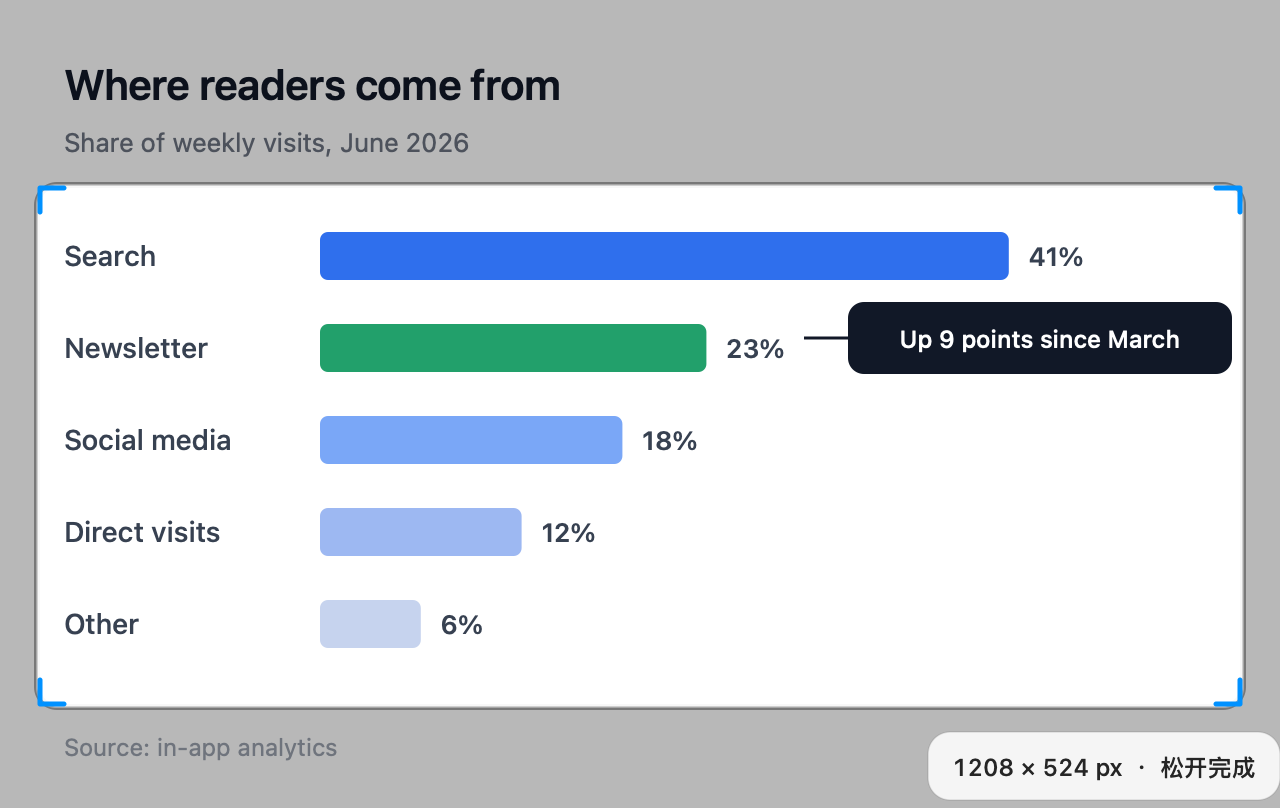
Install
- Download the latest DMG from GitHub Releases. It is about 3 MB, one universal app for Apple silicon and Intel.
- Open the DMG and drag Transeen to Applications.
- Open Transeen from Applications. It lives in the menu bar, so look for its icon there rather than in the Dock.
The app and the DMG are signed with a Developer ID and notarized by Apple, so macOS opens them without a warning. A ZIP and SHA-256 checksums are on the same release page.
Activate
- Choose 激活与账号… (Activation and account) in the menu bar menu, or 激活 Transeen in the launcher.
- Enter your code, which looks like TR-XXXX-XXXX-XXXX-XXXX-XXXX-XXXX, and choose 激活这台 Mac (Activate this Mac).
- If you like, open iTool 账号 (iTool account) and sign in with Google, GitHub or email to bind the license. Signing in to the same account later restores it.
Activation keeps a random installation ID and a receipt in your Keychain; it never reads your Mac’s serial number. One code covers one Mac, and binding an account does not create a second license. StupidMirror SM- and iTool Pro IT- codes are separate products. To get a code, ask in GitHub Discussions.
Allow screen recording
The first time you capture, Transeen asks for the Screen Recording permission. It uses the screen image only, never audio, and only when you press a capture shortcut; it keeps no history and never records continuously.
- Choose 打开系统设置… (Open System Settings), or go to System Settings → Privacy & Security → Screen & System Audio Recording.
- Find Transeen and turn it on.
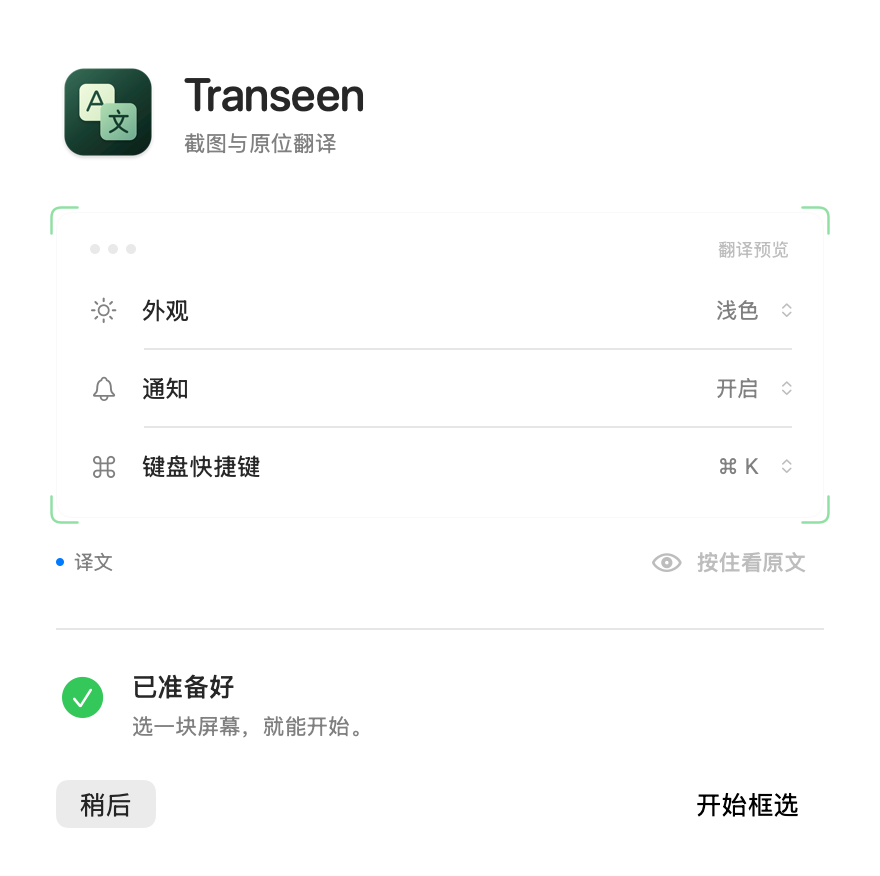
- Come back to Transeen. It checks again by itself; choose 开始框选 (Start selecting) to carry on.
If it is on but still not working, use 重新检查 (Check again) or 重新打开 (Reopen) in the same window.
Choose languages
The launcher has two menus, 原文 (source) and 译文 (target). Leave the source on 自动识别 (Detect) or choose one of the eight languages: Simplified Chinese, Traditional Chinese, English, Japanese, Korean, French, Spanish and German. Any of them translates into any other.

The first time you use a pair with Apple translation, macOS may download its language pack. After that the translation runs on your Mac, offline. Packs are listed in System Settings → General → Language & Region → Translation Languages.
Translate a region
- Press ⌃⌥2. The screen holds still and dims.
- Hover to snap to a paragraph, a field or a window and click, or drag a frame of your own. Esc or a right click cancels.
- Read the translation where the text was. Press Tab to switch to the original and back, or hold Space to peek at it.
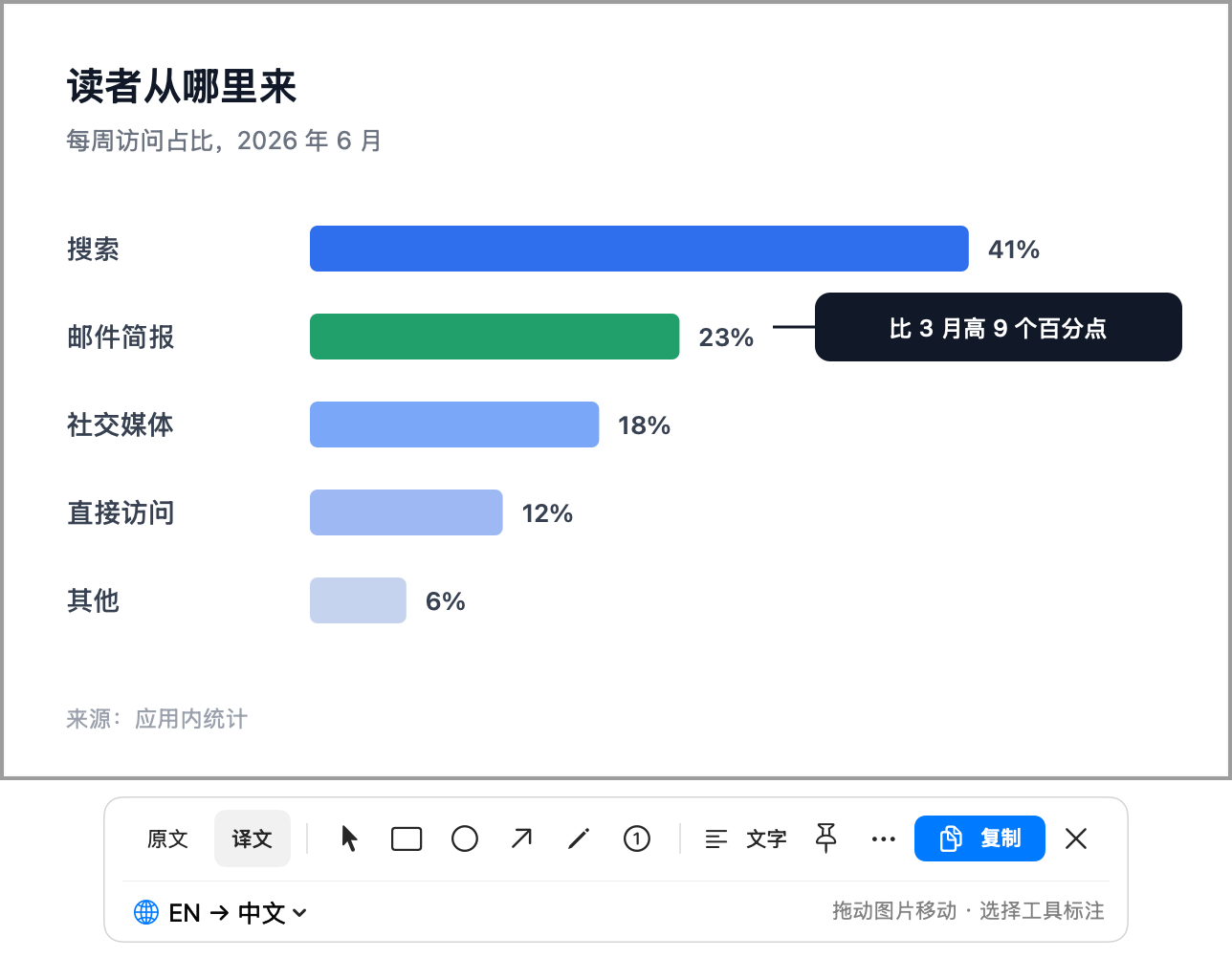
⌃⌥2 uses the default mode, which is translation; Settings → 通用 → 默认框选行为 changes it. ⌃⌥3 captures for marking up without translating; press T in that window if you want the translation after all. To translate a picture you already have, choose 打开图片… (Open image) or press ⌘O.
Mark it up
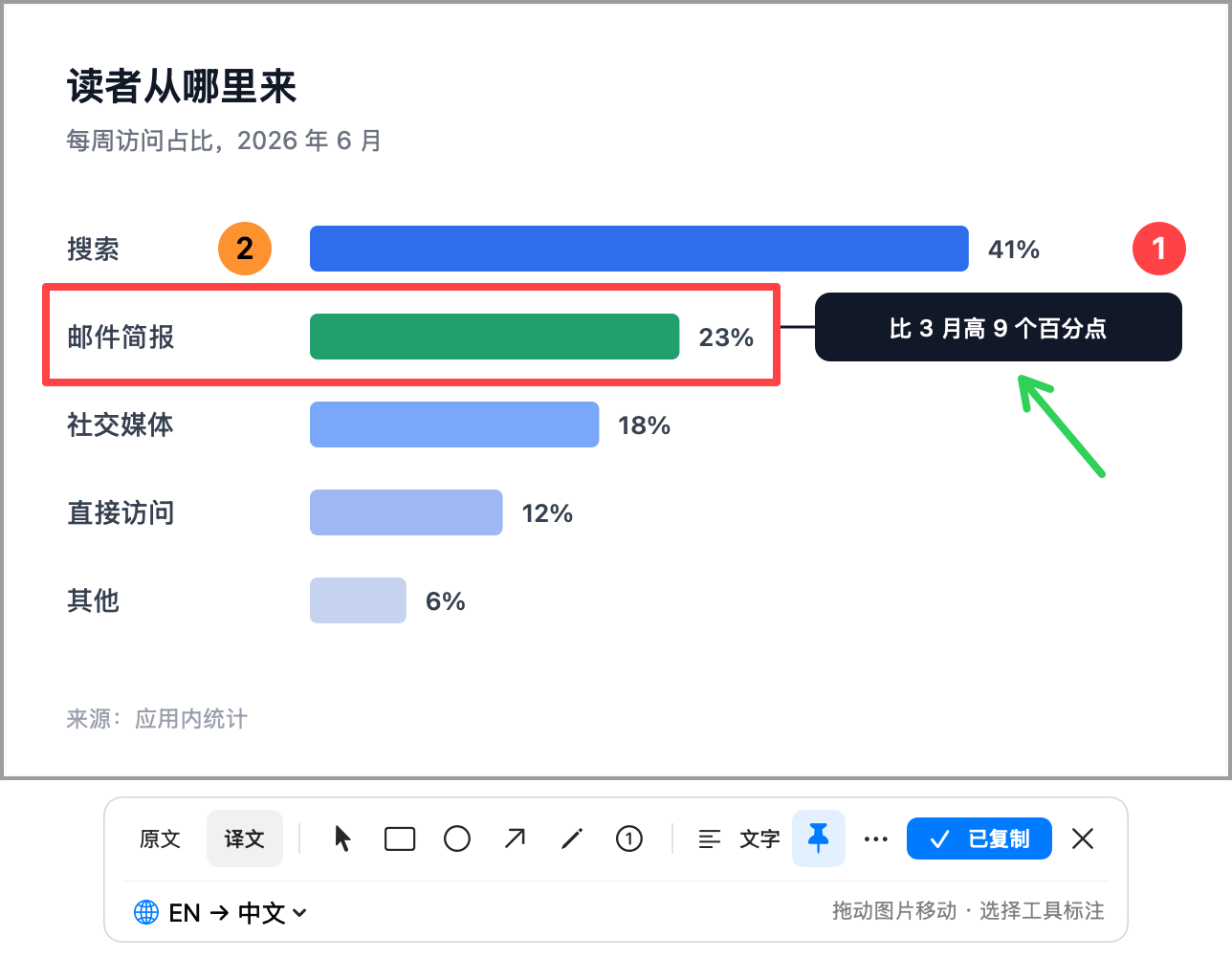
Choose a tool on the toolbar or press its key: R for a rectangle, O for an ellipse, A for an arrow, P for the pen and V to select and move. Numbered notes count up from 1 and keep their numbers through undo and redo.
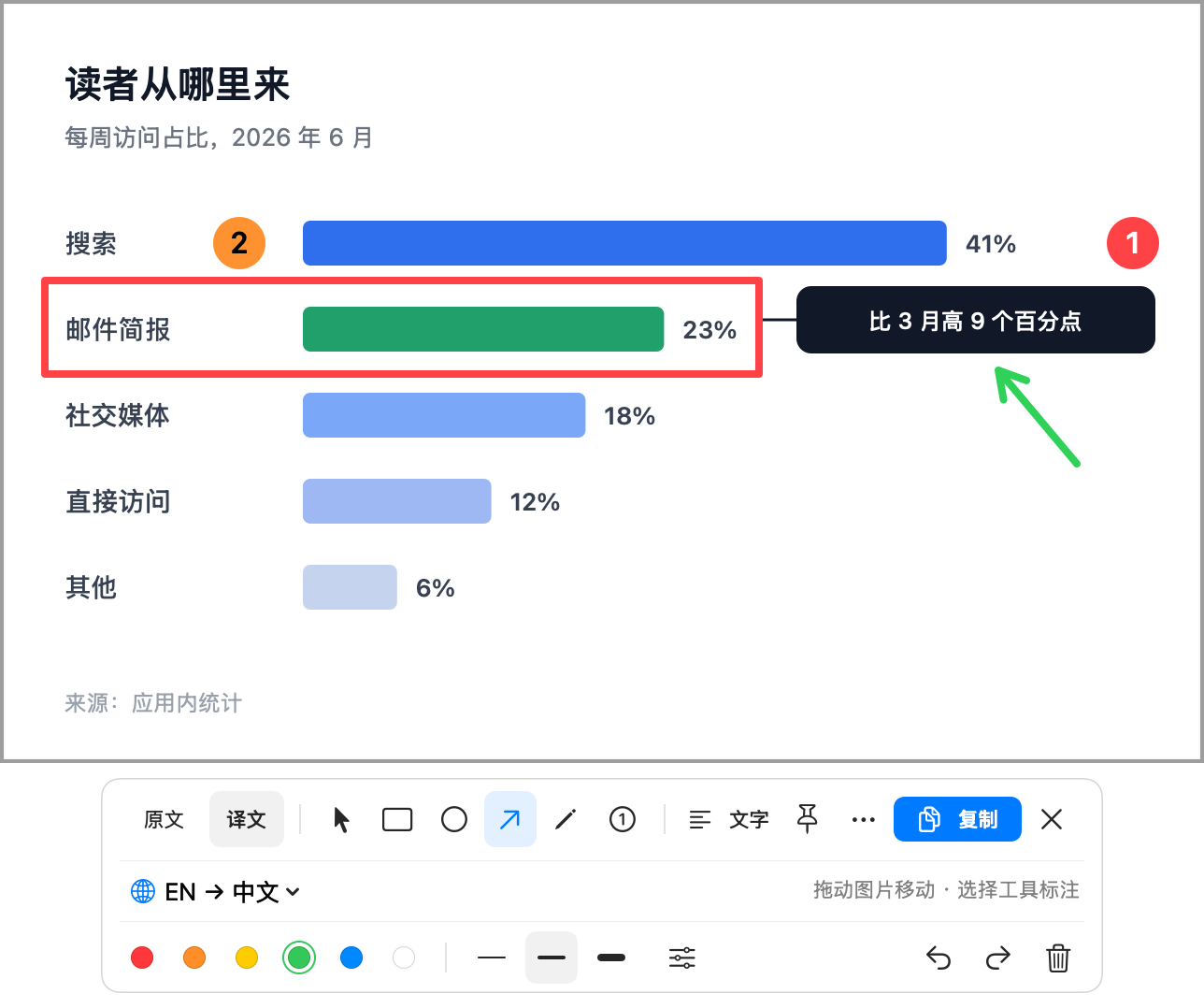
Pick one of six colors and three widths, or open the sliders for any color and a width from 1 to 10. ⌘Z and ⌘⇧Z undo and redo; Delete removes the selected mark.
Copy, save or pin
- ⌘C copies the picture as you see it, marks included. By default this also closes the capture; turn off 复制后关闭截图 in Settings to keep it open.
- ⌘S saves it as a PNG.
- The pin keeps the capture floating above your other windows while you work beside it.
- 文字 (Text) opens the full translation next to the original, ready to copy.
Use your own model
Apple translation is the default. To use a model, open Settings (⌘,), set 翻译服务 (Translation service) to 大模型 / 本地模型服务 (Model or local model service) and fill in:
- 接口地址, the full chat completions URL, for example
https://api.openai.com/v1/chat/completions; - 模型名称, the model name;
- the API key, if the service needs one, then 保存密钥 (Save key). It is stored in your Keychain.
A server on your own Mac works too. Local addresses may use plain HTTP and need no key, for example http://localhost:11434/v1/chat/completions for Ollama or http://localhost:1234/v1/chat/completions for LM Studio. Remote addresses must use HTTPS.
Model mode sends only the recognized text, never the screenshot. If a request fails, Transeen shows the error and keeps the original picture.
Keyboard shortcuts
| Default | Action |
|---|---|
| ⌃⌥2 | Select a region in the default mode, translation |
| ⌃⌥3 | Capture a region to mark it up |
| ⌃⌥Space | Switch original and translation from any app |
| Tab | Switch original and translation |
| Hold Space | Peek at the original |
| T | Translate, or try again |
| D | Swap the languages |
| R O A P | Rectangle, ellipse, arrow, pen |
| V | Select and move marks |
| ⌘C | Copy the picture |
| ⌘S | Save as PNG |
| ⌘Z ⌘⇧Z | Undo, redo |
| Esc | Close the capture, or cancel the selection |
| ⌘O | Open an image |
| ⌘, | Open Settings |
Change any of them in Settings → 快捷键 (Shortcuts); 恢复全部默认快捷键 restores the defaults.
Troubleshooting
Nothing happens when I press ⌃⌥2
Another app may hold the same shortcut; Transeen tells you when it cannot register one. Choose a different key in Settings → 快捷键, or start from 框选(默认模式) in the menu bar menu.
The capture is empty or the permission keeps asking
Open 屏幕权限… in the menu bar menu. If System Settings already shows Transeen turned on, turn it off and on again, then choose 重新打开 (Reopen).
Apple translation does not start
The language pack for that pair may still be downloading. Check System Settings → General → Language & Region → Translation Languages and try again.
Some text comes out wrong
Dense layouts, formulas and specialist terms can trip up recognition or translation. Compare with the original (Tab), open 文字 for the full text, or select a smaller region.
Build from source
Transeen is MIT licensed. You need Xcode 26.4 or later, Swift 6 and XcodeGen.
brew install xcodegen
git clone https://github.com/LiuTianjie/Transeen.git
cd Transeen
./scripts/build.sh
The app is written to dist/Transeen.app. Without a Developer ID identity the build is signed ad hoc; set TRANSEEN_SIGNING_IDENTITY for a signed build. The tests are ./scripts/test.sh, ./scripts/test-license.sh and ./scripts/test-lifecycle.sh. The hosted activation service belongs to the official app, so an independent distribution needs its own licensing backend.
Download Transeen 0.7.0
One universal app for macOS 26 or later, signed and notarized.
Download for Mac